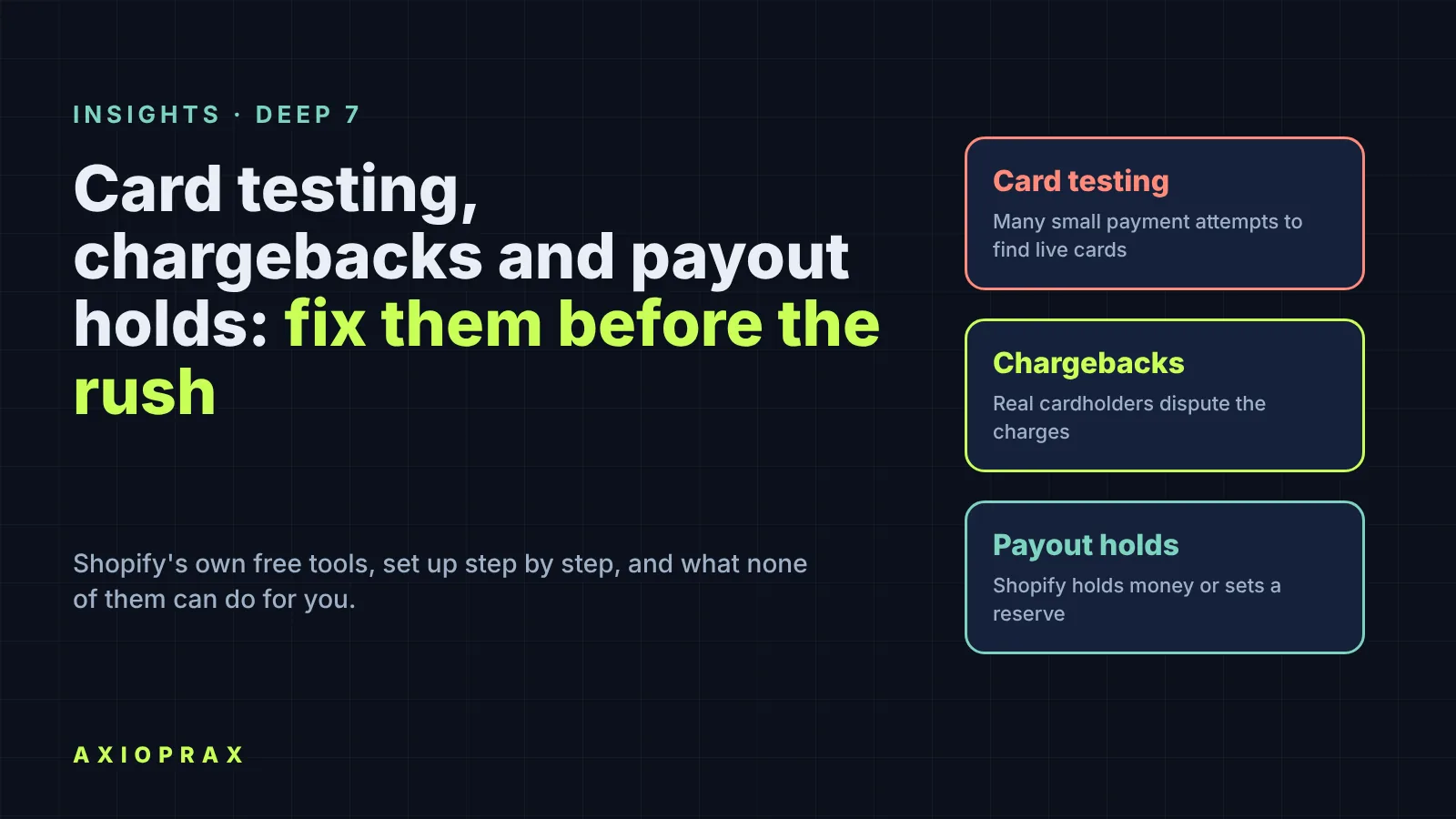
Why do card testing, chargebacks and payout holds show up together?
Because each one feeds the next. A card-testing attack can leave you with real orders paid by stolen cards. Those cardholders can later file chargebacks. And chargebacks are one of the signals Shopify Payments watches when it decides whether to hold payouts or set a reserve.
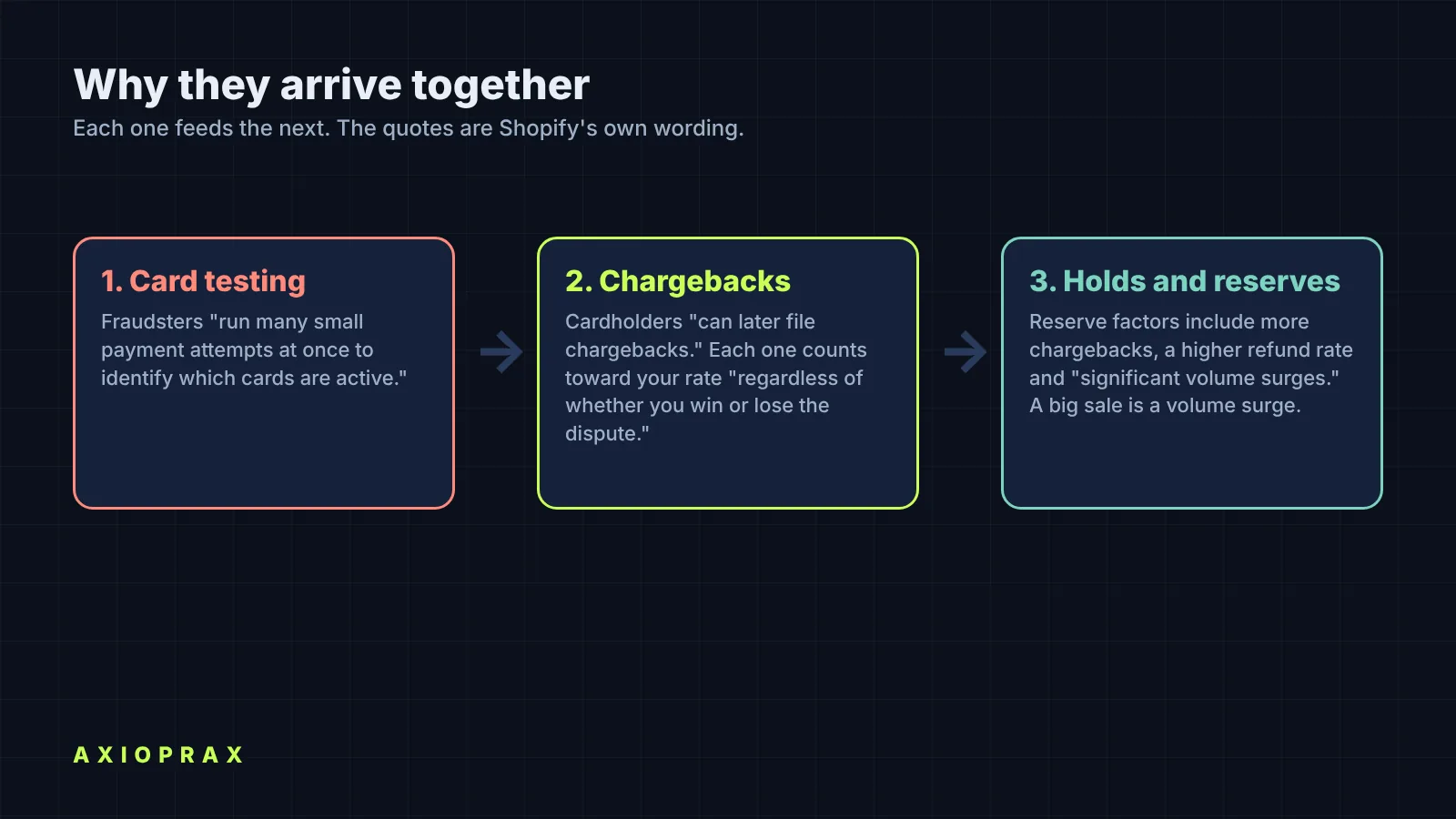
Shopify is direct about the first link. In its own words, card testing is when fraudsters run many small payment attempts at once to identify which cards are active.
Cardholders whose details were used can later file chargebacks with their bank for any unauthorized charges.
Each chargeback counts toward your chargeback rate regardless of whether you win or lose the dispute
(Shopify Help Center, preventing fraud).
The second link is on Shopify's reserves page. The factors it lists for a reserve include more chargebacks, a higher refund rate and significant volume surges
(Shopify Help Center, reserves). Its risk evaluation page also names rapid increases in sales volume
. A big sale is exactly that, so tidy up before it starts.
How do I stop card-testing orders from turning into chargebacks?
Hold risky orders before money moves, and let Shopify's fraud analysis decide which ones wait for you. If you use Shopify Payments, Shopify lists card testing protection as built in. The steps below deal with whatever still gets through.
- Check you are on Shopify Payments. Card testing protection and proxy detection are listed for stores that use it, and Shopify runs enhanced fraud analysis on its transactions.
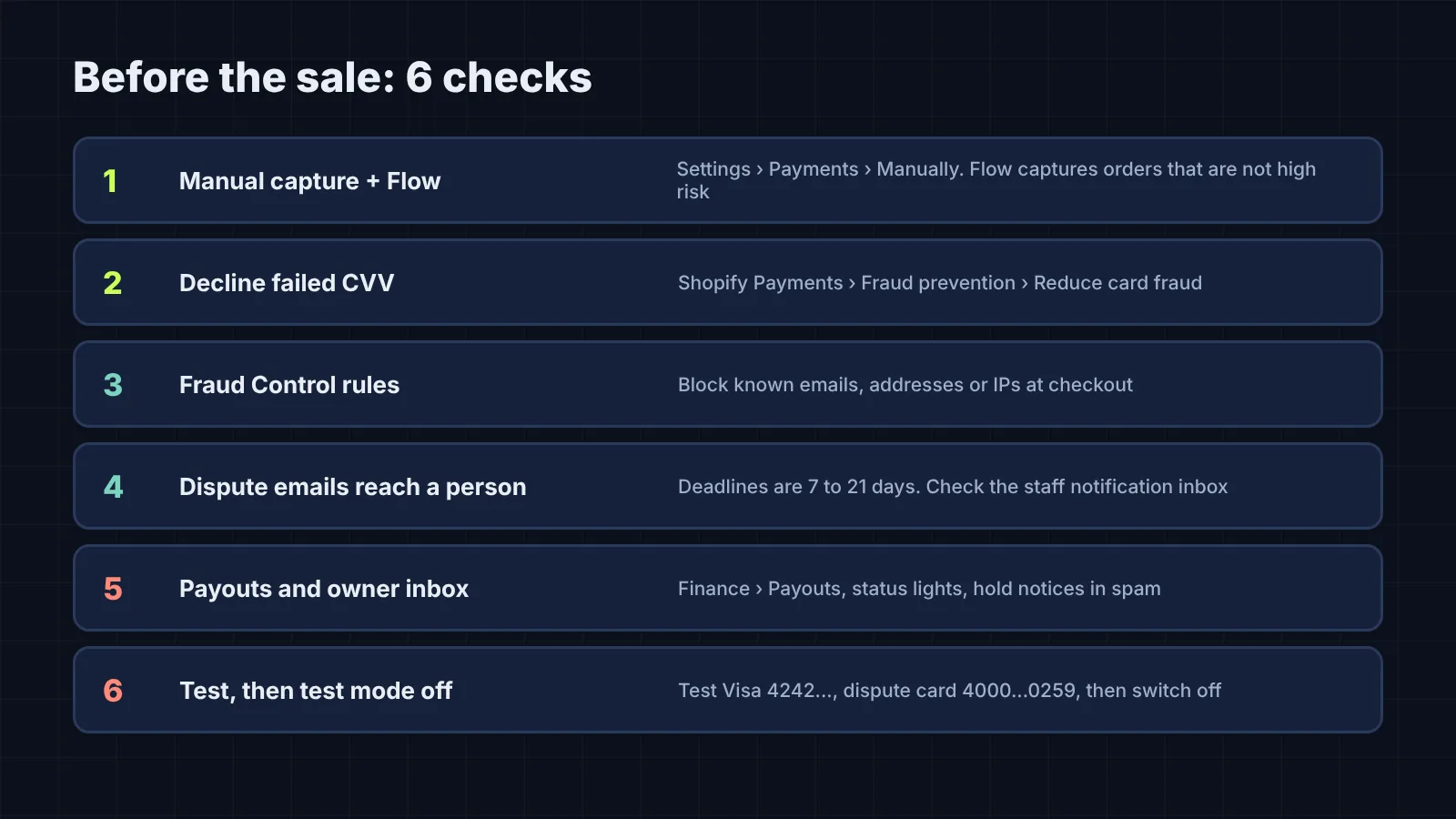
- Go to Settings, then Payments. In the Payment capture method section, select Manually and click Save. Shopify Payments gives you 7 days to capture an authorized card payment, so do not let orders sit (Shopify Help Center, authorization and capture).
- Install Shopify Flow. Go to Apps, Flow, Create workflow, Browse templates, then Risk, and install
Capture payment if order is not high fraud risk
. Shopify says capture workflows do not work if automatic capture is still on (Shopify Help Center, high-risk orders with Flow). - Keep the Order risk analyzed trigger. Shopify warns against Order created for risk workflows, because fraud analysis takes time to finish after an order is placed.
- In the Otherwise branch, add an Add order tags action or a Send internal email action, so high-risk orders that were not captured reach a person.
- Go to Settings, Payments, Shopify Payments, Manage. In Fraud prevention, click Reduce credit and debit card fraud. Turn off Use automated settings, turn on Decline charges that fail CVV verification and click Save. Shopify says AVS checks can raise failed transactions, so think twice before turning that one on (Shopify Help Center, configuring Shopify Payments).
If an attack is already running, cancel the high-risk orders before you fulfil anything. Shopify notes that cancelling doesn't prevent the cardholder's bank from filing one
, because the authorization hold can still show on the real cardholder's statement. Our card-testing fix has the full walk-through.
How do I block someone I already know is a fraudster?
Use Shopify's free Fraud Control app. Its checkout rules stop a matching checkout before it becomes an order. Shopify offers it on all plans in places where Shopify Payments is available (Shopify Help Center, Fraud Control).
- Install Fraud Control from the Shopify App Store.
- Go to Apps, Fraud Control, Rules, then Create rule.
- Add the email, address or IP address under Checkout conditions. A rule can combine conditions. Shopify's own example pairs an IP address with a ZIP code, which narrows what the rule blocks, so legitimate checkouts are less likely to be caught.
- Click Save. The rule is active straight away. Shopify names it from its conditions, and you cannot rename it.
- From the Fraud Control app page, look at the Flow templates Shopify offers. Two are useful for this week:
Notify your team of a chargeback
andRestrict orders from customers to five a day
.
The buyer is not told they matched a rule. They see an error that checkout could not be completed and are asked to contact the store. Blocked checkouts show in abandoned checkouts.
Fraud Control also shows your chargeback health if you use Shopify Payments. Shopify calls chargebacks under 0.4% of orders good standing, 0.4% to 0.6% at risk, and over 0.6% its highest risk level, where your risk is higher than average. Step by step: our repeat fraudster fix.
What should I do the moment a chargeback arrives?
Find it, note the due date and gather evidence that matches the reason. Do not try to refund. Shopify says you cannot refund a chargeback once it has started. The disputed amount and a chargeback fee leave your account straight away (Shopify Help Center, responding to chargebacks).
- Go to Orders, click Search and filter, add the Chargeback and inquiry status filter and select Open.
- Open the order and read the banner. Write down the reason and the due date. Shopify shows it in your store's timezone, and if no time is shown, the deadline is 11:59 PM on that date. The due date is 7 to 21 days after the chargeback is filed (Shopify Help Center, chargebacks in the admin).
- Look for a
Not enough evidence to challenge this chargeback
notice. If you see it and do nothing before the due date, Shopify accepts the chargeback automatically. - Gather proof for that reason. For product not received, Shopify lists tracking, delivery confirmation, proof it went to the checkout address and carrier notifications. Each file must be a PDF, JPEG or PNG under 2 MB, with 4 MB in total.
- Click Add evidence in the banner, put your strongest proof first and click Save. Only click Submit now when everything is in, because you cannot edit afterwards.
Shopify adds some order details automatically and submits on the due date even if you add nothing. Do not rely on that alone. Shopify's own line is that the bank and card company decide the outcome, not Shopify. Strong evidence helps, but Shopify says it doesn't guarantee that you win.
Full guide: our chargeback fix.
One setup task belongs before the sale. Shopify has an Order dispute updates staff notification that controls who is emailed about disputes. Check it points at an inbox someone actually reads during sale week.
How do I stop the same customer causing a second chargeback?
Tag them when the dispute opens, and hold their next order. Shopify Flow has a Dispute created trigger that runs when a chargeback or inquiry is created on an order that uses Shopify Payments. Shopify lists Add customer tags and Hold fulfillment order among the actions it works with (Shopify Help Center, Dispute created).
- In Apps, Flow, create a workflow with the Dispute created trigger.
- Add an Add customer tags action with a neutral tag such as
dispute-review. - Build a second workflow of your own (there is no Shopify template for this) that checks new orders for that customer tag and uses the Hold fulfillment order action, so a person checks them before they ship.
- Tag customers from disputes that opened before you turned this on, because the trigger only runs for new ones.
Why would Shopify hold my payout or set a reserve, and what can I do?
A hold usually stops the payout while Shopify checks something. A reserve keeps back part, or sometimes all, of your money for a set period to cover chargebacks and refunds. You can prepare for either one. You cannot decide either one. Shopify does.
Shopify's reasons for account holds include missing information, wrong bank details, product eligibility and business types it does not support (Shopify Help Center, account holds). On the reserve side, Shopify uses two types. A fixed amount reserve holds a set sum for a defined period. A percentage-based reserve holds a share of each transaction. Shopify's example is 10% for 120 days, with the other 90% paid out as normal.
Before the sale:
- Go to Settings, Payments and look at the Shopify Payments status indicators. Green means working as expected. Yellow means that part is not working as expected, or is expected to stop working. Red means that part is blocked.
- Go to Finance, then Payouts. Pending is captured money not yet added to a scheduled payout. Reserve appears only if your account has reserved funds.
- Confirm which email is the store owner's in Settings, Users and permissions. Shopify sends hold and reserve notices there and to Merchant Alerts in your admin. Only the store owner can see the account details and resolve a hold.
- Check that inbox and its spam folder now, not after a payout fails to arrive.
- Leave your bank account alone if you can. Shopify says changing to a new external bank account pauses payouts for 3 to 5 business days.
If a notice does arrive, Shopify says the fastest route is to send what it asks for and reply directly to its email. Customers can usually still check out during a hold, but you are not paid for those orders until it is resolved. A reserve has an expiry date in its email. When it expires without an extension, Shopify says the money is included in upcoming payouts and might take several business days
to process (Shopify Help Center, risk evaluation). Our payout hold fix covers this in detail.
How do I test all of this before real customers arrive?
Use Shopify Payments test mode, then switch it off. Shopify says you should not turn on test mode on a store that is in production: no real payments are captured while it is on, and customers paying with Apple Pay or Google Pay can still complete checkout without being charged (Shopify Help Center, testing Shopify Payments). If you only have your live store, keep the window as short as you can, at your quietest hour, and look for orders with the test mode banner afterwards.
- Go to Settings, Payments, Shopify Payments, Manage. In Test mode, select Enable test mode and click Save.
- Place an order with Shopify's test Visa, 4242424242424242, a name of at least two words, any future expiry and any three digits.
- Check that your capture workflow ran and the order was captured or tagged as you expect.
- Place a second order with 4000000000000259, Shopify's test card for a disputed transaction. Shopify names test mode as a way to test the Dispute created trigger, so check your dispute workflow tagged the customer.
- Turn test mode off and click Save straight away.
Full checklist: our test checkout fix.
What can none of this do?
We want to be plain here. None of these steps lifts a payout hold, ends a reserve early or wins a chargeback. Shopify decides holds and reserves. The card company decides chargebacks. Fraud Control rules only stop checkouts that match what you typed in. Shopify says the rules don't guarantee that chargebacks won't happen.
A determined fraudster can change email, address and network.
Most of this also depends on Shopify Payments. The Dispute created trigger and card testing protection need it, and Fraud Control is offered only where Shopify Payments is available and shows chargeback data only to stores that use it. Shopify Protect, which covers eligible orders against fraudulent and unrecognized chargebacks, is listed for US stores that use Shop Pay. If you use another payment provider, check what fraud and dispute tools that provider offers.
And a note on our own pages. Our fix pages are written from work on a demo store with synthetic data. They show the settings work as Shopify describes. They do not show results on a live store.
Where does the Protect Pack fit?
If you would rather not set this up yourself, our Protect Pack does it for you. It installs our Fraud Hold and Bot Cleanup kits together, plus card-testing safeguards and a check of your stock, checkout and payout settings before your busy weeks. It costs $499, one-off, which is $199 less than buying the two kits separately. It comes with a 30-day fix-it guarantee.
Not sure what your store needs? Book a free 20-minute call.
This article was drafted with AI help and checked by me.