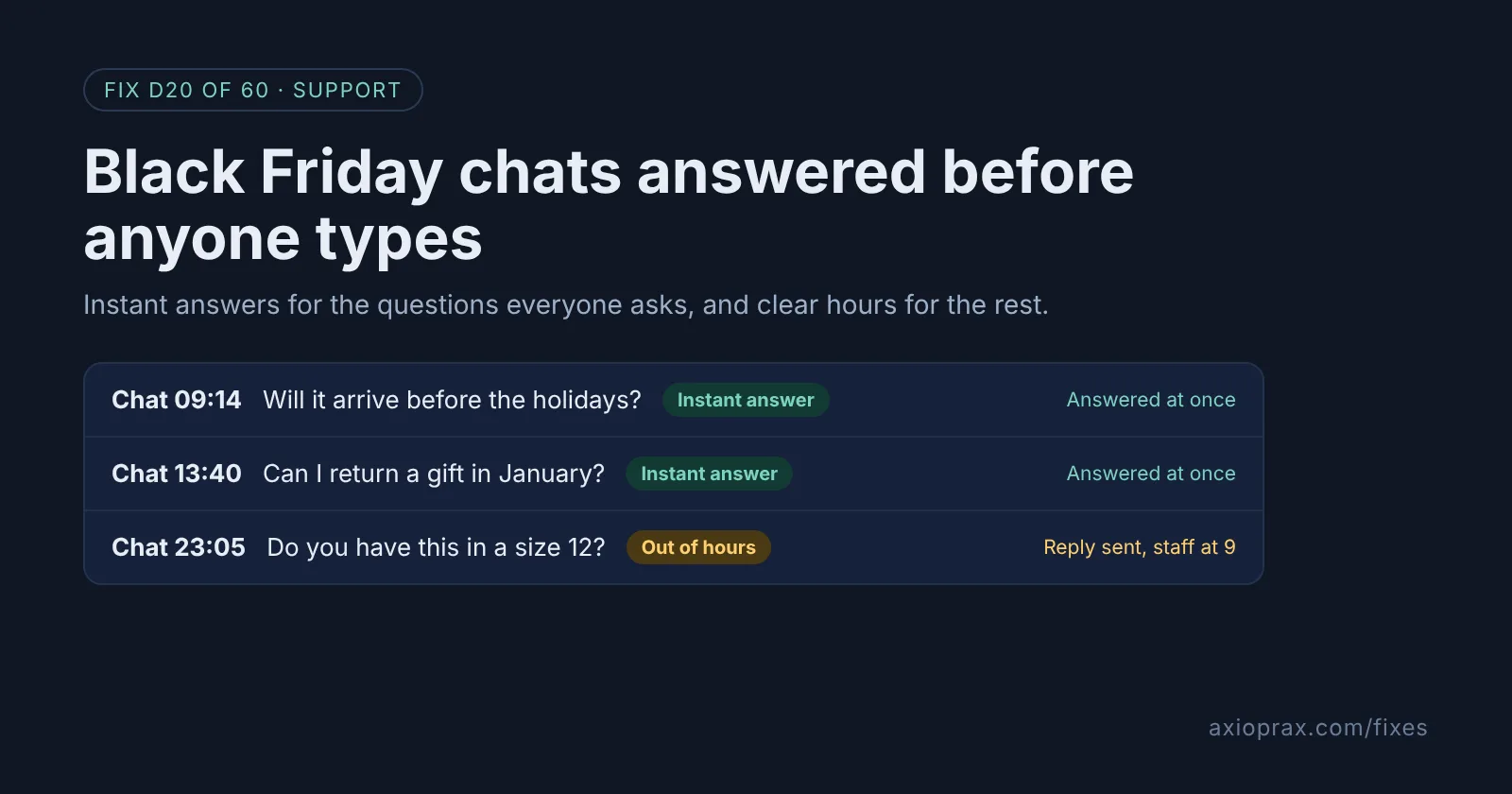
What are instant answers, and why set them up before Black Friday?
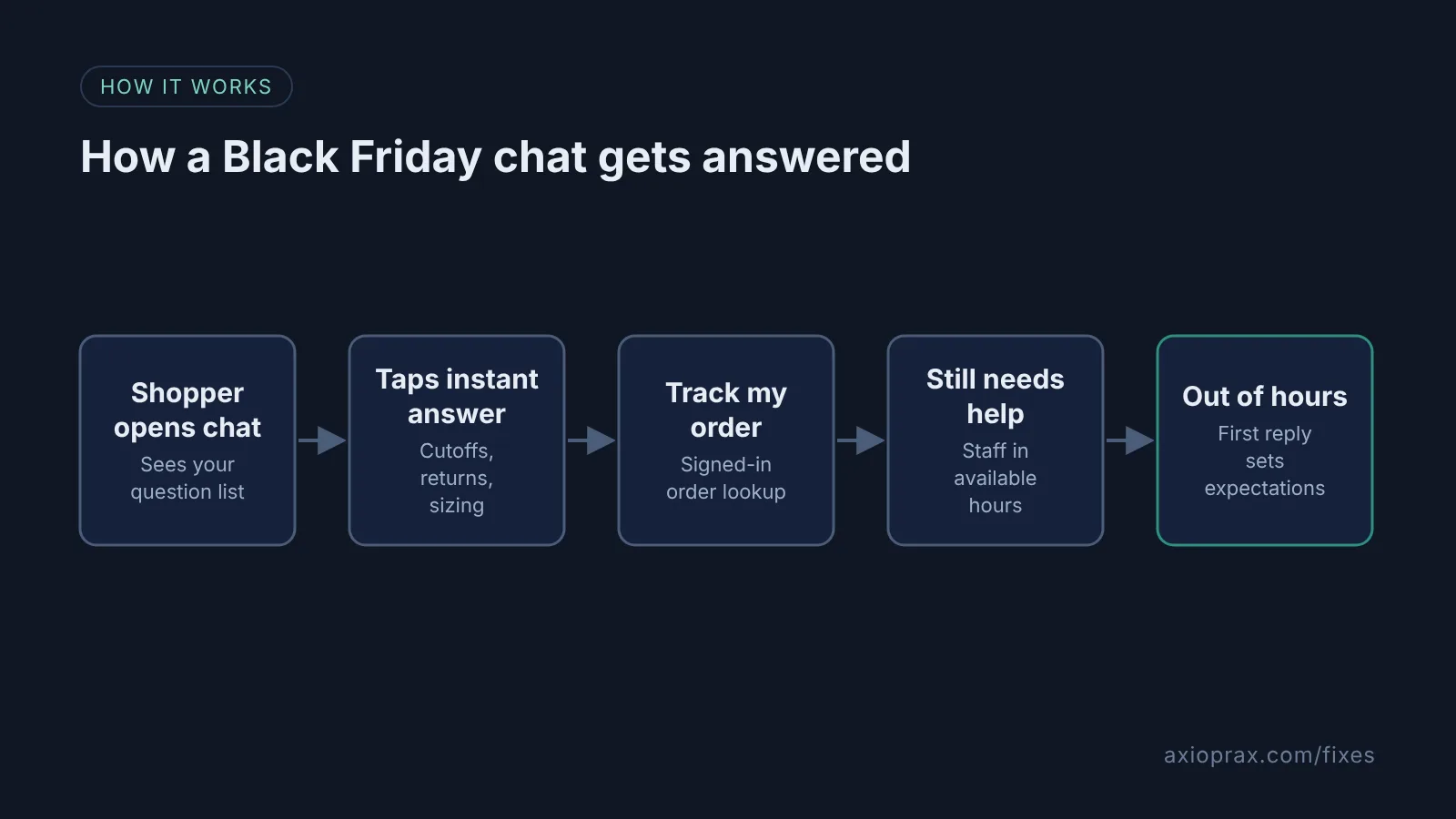
When a shopper opens chat in Shopify Inbox, they see a greeting and a short list of questions. If you are not using the Inbox agent, those questions are your instant answers. The shopper taps one and gets the answer you wrote, at once, even when nobody is at the desk. Anything they ask after that comes to your staff.
In Black Friday week, many chats ask the same few questions: will it arrive in time, can I return it, which size do I need, where is my order. Writing those answers once, before the rush, means your team spends the week on the chats that need a person.
How do I know I need this?
- Last year you typed the same shipping cutoff reply again and again.
- Chats arrive at night and wait until morning with no reply at all.
- Your chat still shows only the default Track my order option.
- Your holiday return window or delivery dates live on a page shoppers never find.
If two of these sound familiar, give it an afternoon this week.
How do I fix it? (step by step)
Work through it with your Shopify admin open, and tick each step as you go.
0 of 7 done
Turn on chat in your theme.
Install Shopify Inbox, then go to Online Store, click Edit theme, select App embeds, then Online store chat. Turn on Online store chat and click Save.
Write your shipping cutoff answer.
Go to Sales channels > Inbox, click Chat settings, and in the Instant answers section click Create instant answer. Put the shopper's question in the Question text box, your real last order date for holiday delivery in the Answer text box, and click Save.
Add returns and sizing answers.
Repeat Create instant answer for your holiday return window and for sizing. Shopify also suggests answers from your store policies, so click a suggested answer, edit it to match your rules and click Save.
Put the busiest questions first.
In the Instant answers section, drag the handle next to each answer so shipping and returns sit at the top, then click Save. Turn off any answer that does not apply this season instead of deleting it.
Check Track my order works.
Track my order shows in chat whether or not your Inbox agent is active. Open the chat on your store and check it is there. Customers must sign in to review an existing order, so check that signing in works on your store before the sale.
Set your chat hours.
Go to Sales channels > Inbox > Chat settings > Availability and use the Hours section to set a start and end time for each day. Use Apply these hours to all days if they are the same, then click Save.
Write an out of hours reply.
In the Automated first reply section, click Turn on. Click Outside of available hours and, in the Message text box, say when you will reply and where to find shipping and returns answers. Click Save.
How is this different from fixing where is my order emails?
Fix #5 stops tracking questions before they are asked, with shipping emails and the order status page. This fix is about the chat window during your busiest week: the pre-sale questions about delivery dates, returns and sizes, plus clear hours so nobody waits in silence.
When is this not the right fix?
Instant answers are fixed text. They do not change themselves when your shipping cutoff passes, and we found no way to schedule them on Shopify's page, so put a reminder in your calendar to edit or turn off the cutoff answer the day it expires. A stale date is worse than no answer. If you have turned on the Inbox agent, the list of instant answers is replaced by its conversation starters, so your time is better spent on your store policies, which the agent answers from. And if most of your questions come by email rather than chat, start with Fix #5.
What does it cost?
Shopify Inbox is listed as free on the Shopify App Store. Allow an afternoon for setup. Most of that time goes on agreeing the real cutoff dates and return rules with whoever ships your orders.