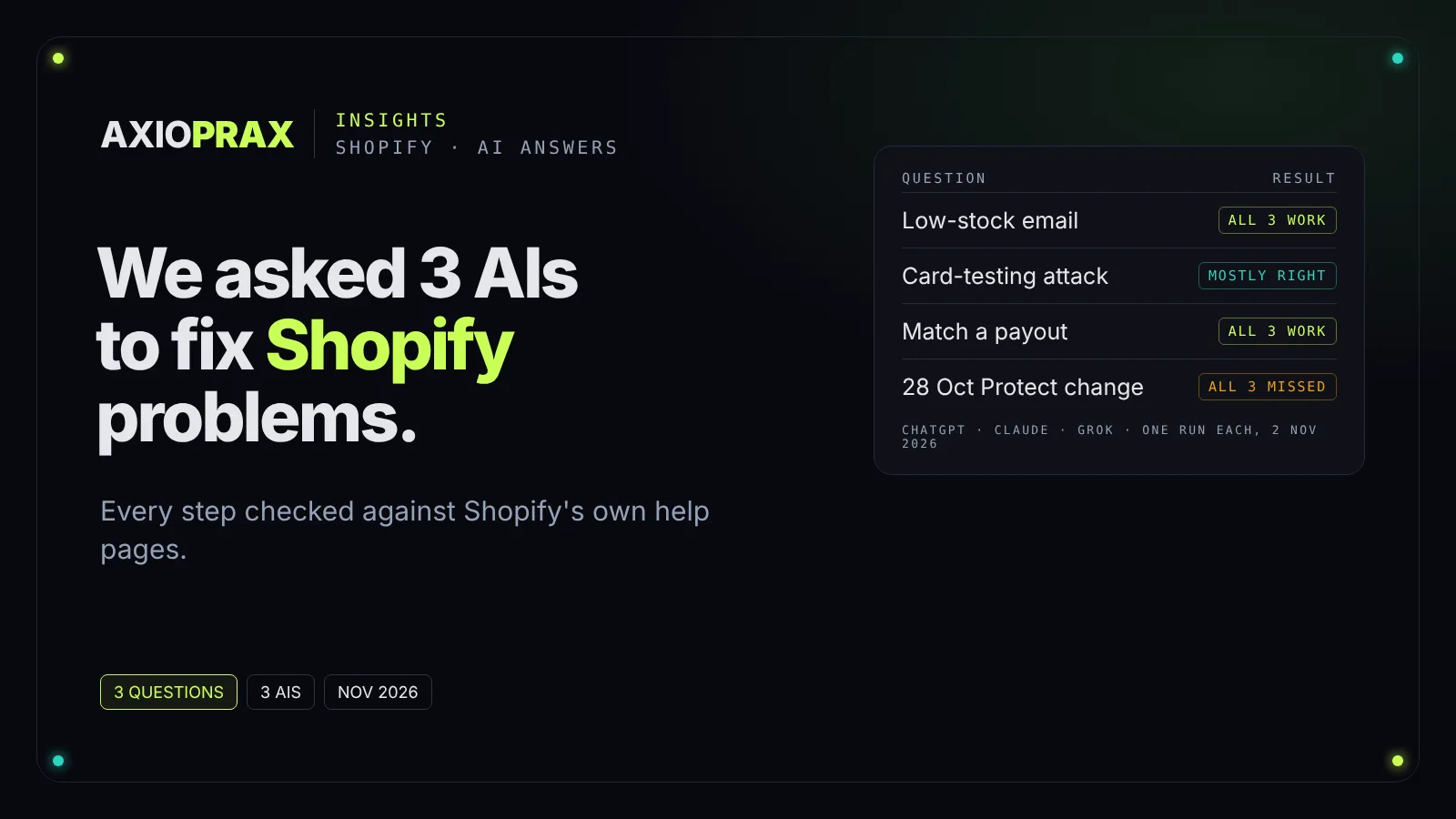
Plenty of store owners now ask an AI assistant before they open the Shopify Help Center. So we gave ChatGPT, Claude and Grok the same three everyday Shopify problems and checked every step they gave against Shopify's own help pages. All three would have got a store owner most of the way there. None of them was perfect, the mistakes were small but real, and all three missed a Shopify change from the week before.
We build automations with Claude, and Claude helped us draft this article. That is a reason to read the Claude results with care, so we scored every answer against Shopify's pages, not against each other, and we list each AI's mistakes in full below.
How did we test them?
We wrote three questions the way a store owner would, with the details that matter. These are the exact prompts:
- Low-stock email. "I run a Shopify store on the Grow plan. I want to get an email when any product variant drops below 5 units in stock, without paying for an app. Give me exact step-by-step instructions in the Shopify admin, using the real menu and template names."
- A card-testing attack. "Last night my Shopify store got about 40 small orders in an hour, most with failed card payments and a few that went through. I use Shopify Payments. What exactly should I do in the Shopify admin today? Give step-by-step instructions with the real menu paths."
- A short payout. "My Shopify Payments payout this week was less than my sales. How do I match each Shopify payout to the deposit in my bank account, step by step, in the Shopify admin?"
Each question went into a fresh chat with no history or memory, on 2 November 2026, using each product's default settings: Grok's default Fast model in a private chat, ChatGPT's default model in a temporary chat with medium thinking effort, and Claude's default Opus 5.5 model at medium effort in an incognito chat. All three cited web sources, and Grok and Claude showed the searches they ran. Claude asked permission once to read a Shopify help page, and we allowed it. We ran each question once, so treat this as a snapshot, not a ranking. Ask again tomorrow and the wording will change.
To score, we opened the Shopify help pages behind each answer and checked every menu path, setting name and claim. We sorted problems into three kinds: wrong (Shopify's page says otherwise), not in Shopify's pages (we could not confirm it), and missing (a step that matters was left out). Our own guides for the same three problems are linked at the end of each section.
Question 1: can they set up a low-stock email?
Yes, all three. Each one sent us to Shopify Flow, which is free, and to the right template by its exact name, Get notified by email when product variant inventory is low
(Shopify Help Center, Product variant inventory quantity changed). All three also added the step most quick guides skip: a second condition on the previous stock level, so you get one email when stock crosses the line instead of one after every sale. Shopify warns that if you check only the current amount, your reorder email is sent each time the product is ordered
until you restock (Shopify Help Center, examples of workflows).
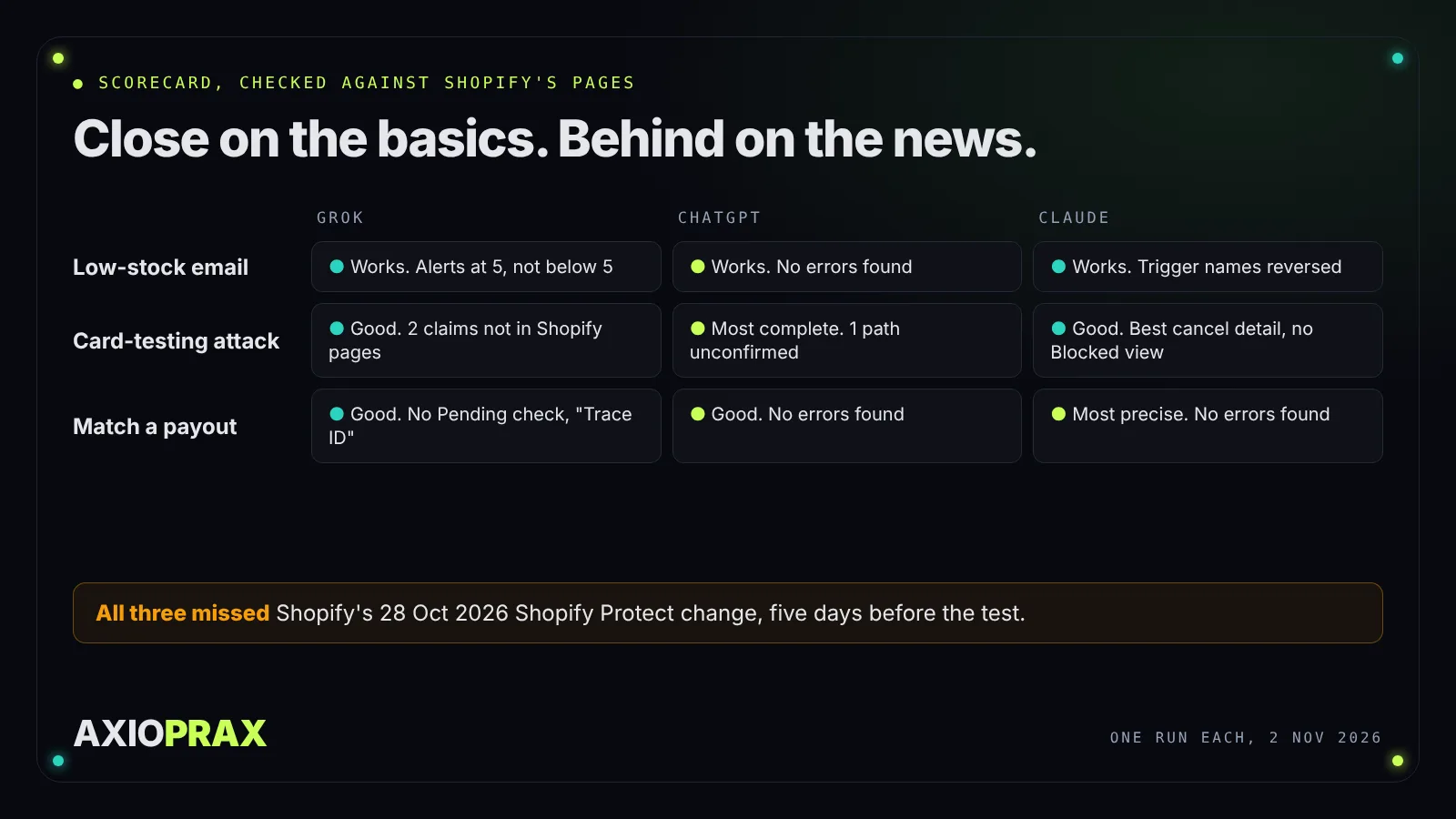
- ChatGPT: no errors found. It set the condition to less than 5 with a previous quantity of 5 or more, named the trigger correctly as Product variant inventory quantity changed, previously Inventory quantity changed, and added a table of which stock changes would send an email.
- Claude: one error. The setup was right, but it said Shopify's docs call the trigger Inventory quantity changed and older guides use the longer name. It's the other way round: Shopify's page names the trigger Product variant inventory quantity changed and says it was previously called Inventory quantity changed. Harmless if you're following along in Flow, confusing if you're searching for it.
- Grok: one slip. It set the condition to 5 or fewer, so the email arrives at 5 units, not below 5 as we asked. It did mention "less than" as an option. It was also the only one to point out that the trigger runs even when inventory tracking is off, which Shopify confirms.
Our step-by-step version: get a low-stock email on Shopify without an app.
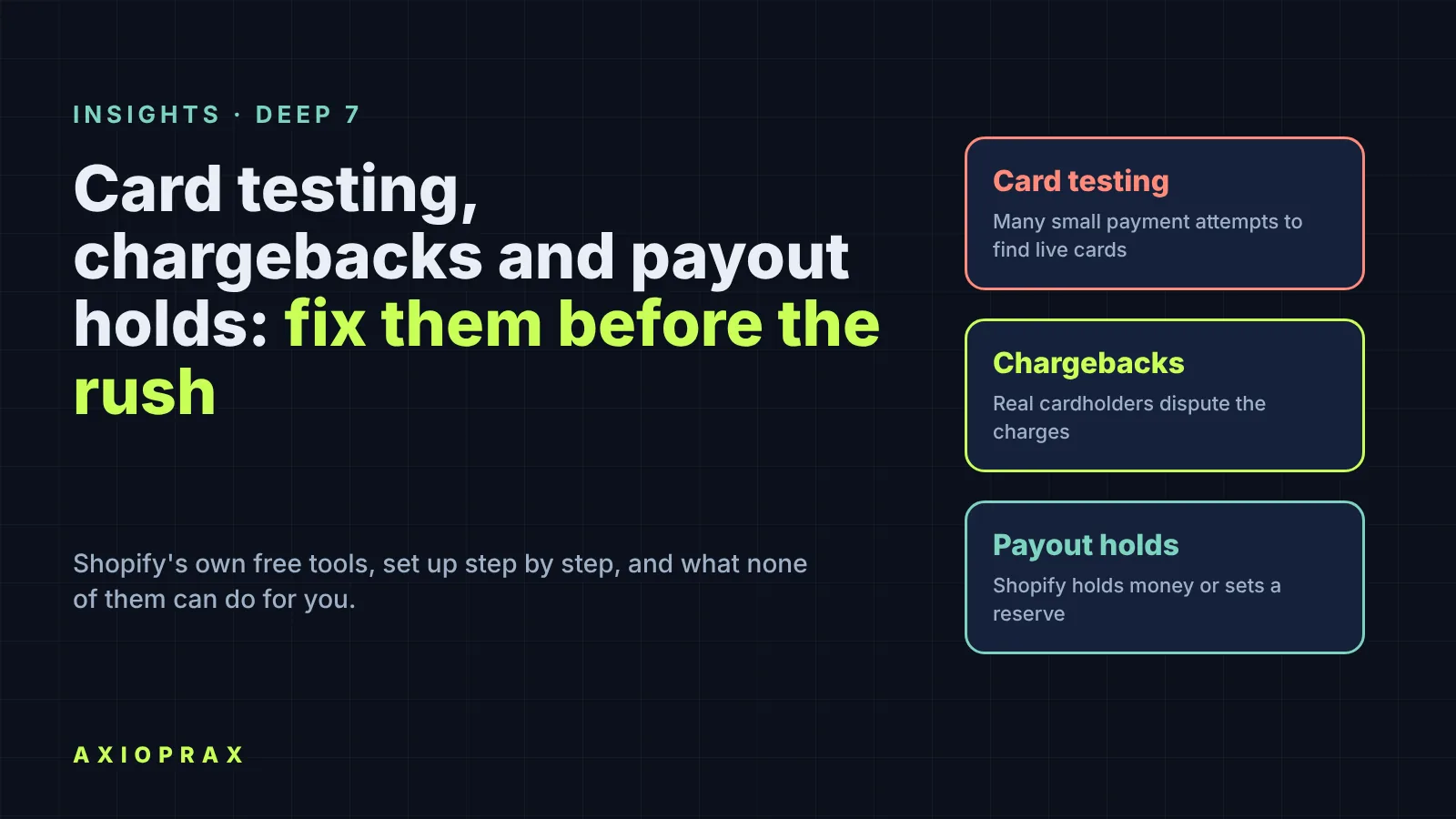
Question 2: do they know what to do after a card-testing attack?
Mostly. All three recognised card testing straight away and gave the same core plan: check Shopify's fraud analysis on each order that went through, don't ship them, cancel and refund, turn on Decline charges that fail CVV verification under Settings, Payments, Shopify Payments, Manage, then switch to manual payment capture for a while. We checked those paths and setting names against Shopify's pages and they are right (Shopify Help Center, configuring Shopify Payments and payment authorization and capture).
- ChatGPT: the most complete answer, in eight steps. It named the Order risk evaluation section correctly, included the optional Send a warning 1 day before an authorization expires setting, the Blocked view in abandoned checkouts, Fraud Control rules and the chargeback filter on the Orders page. One step we could not confirm: the exact route it gave for reaching a human in Shopify's Help Center.
- Claude: the best detail on cancelling. It warned that cancelling in bulk can refund orders that were already refunded, which Shopify's cancelling page states, and that card fees aren't returned on refunds. It also gave the 7-day authorization window for Shopify Payments, which is right. It left out the Blocked view in abandoned checkouts.
- Grok: a good plan with the Blocked view included, but two claims we could not find in Shopify's pages: that reporting the attack
helps your account standing
, and its advice to unpublish or reprice the cheap product being targeted. The second may be sensible, it just isn't Shopify's guidance.
What all three missed: on 28 October 2026, five days before our test, Shopify said Shopify Protect is on for every business on Shopify Payments, declines payments it is near-certain are fraud before they reach the bank, and gives each order a plain-language explanation of its risk (Shopify blog, Introducing Shopify Protect). None of the three named Shopify Protect or its new risk explanations, though each said in general terms that Shopify already blocks some attempts. Their advice still works. It just doesn't tell you what changed that week. None of them named the free Flow template Capture payment if order is not high fraud risk either, which pairs with manual capture so you only check the risky orders by hand.
Our step-by-step version: how to catch card-testing orders on Shopify.
Question 3: can they match a payout to a bank deposit?
Yes, and this was the strongest round. All three gave the right route, Finance, then View payouts in the Payouts section, said to open each payout and use its breakdown of charges, refunds, fees, adjustments and reserves, and said to export the payout transactions as a CSV. All three said deposits typically take 1 to 3 business days to arrive, which matches Shopify's page (Shopify Help Center, payout details).
- Claude: the most precise, because it read Shopify's payout page before answering. It covered the older Money page for admins that still have it, the bank reference number to give your bank, retried payouts, and the Pending section for sales not yet paid out. No errors found.
- ChatGPT: no errors found. It filtered by payout date, checked for Deposited status and Pending funds, and pointed to the Shopify Payments activity report if weekly totals still differ.
- Grok: correct, and the only one to mention the Bank Reference column in payout exports, which Shopify's changelog shows was added in January 2026 (Shopify changelog). It called the bank reference a "Trace ID", which isn't Shopify's term, guessed that a bank might take a small fee, and didn't mention Pending, which is often why a week's payouts look short.
Our step-by-step version: match Shopify payouts to bank deposits.
So which one should a store owner use?
On three questions and one run each, we would not crown a winner. ChatGPT had the fewest errors, Claude was the most exact when it read the source page, and Grok was quick and mostly right with a couple of loose claims. Their mistakes were small. What they all missed was a Shopify change from the week before.
So use the steps they give you, then check them before you change anything in your store.
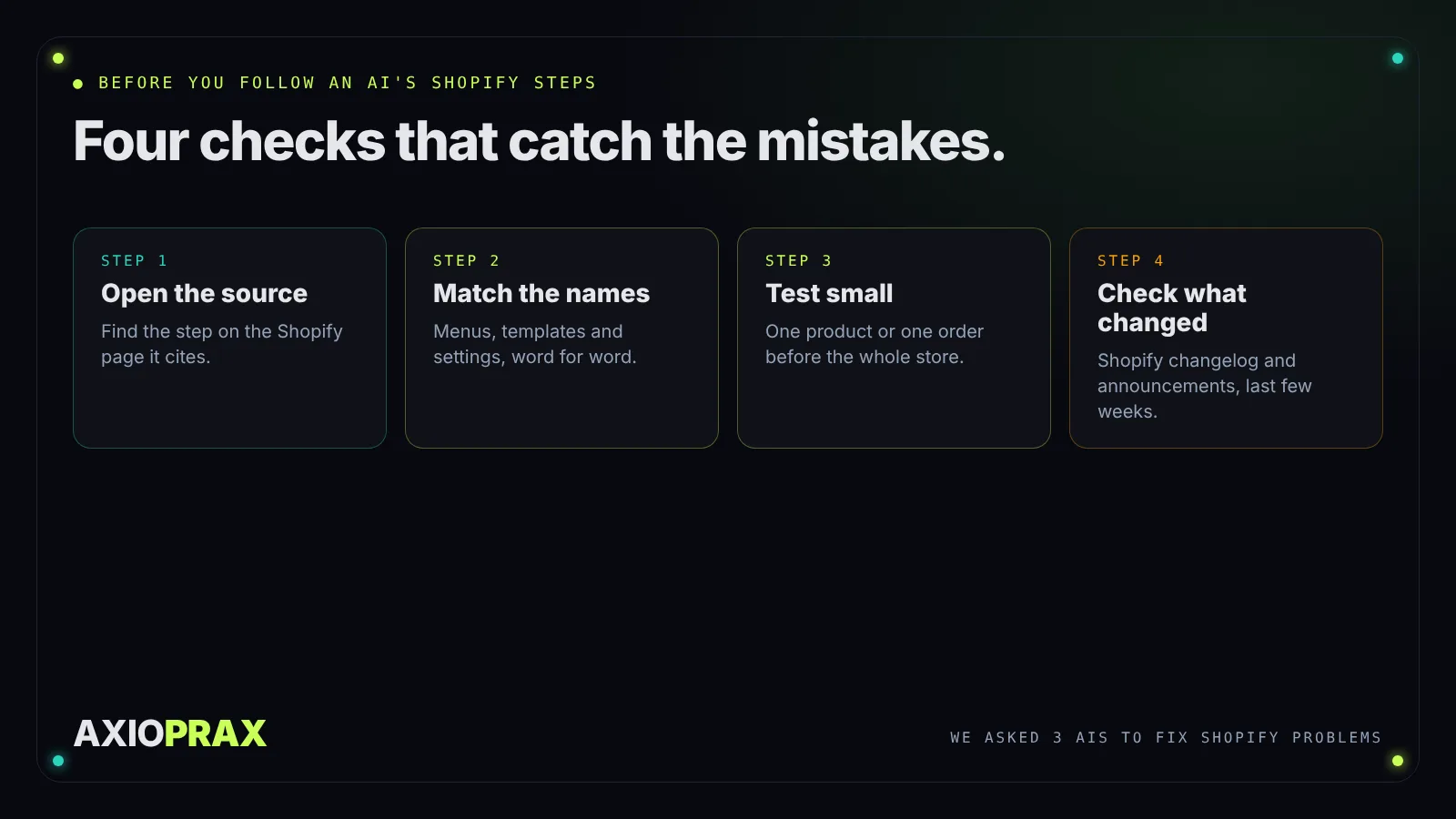
- Open the source. All three cited Shopify pages. Click one and find the step there. That alone catches a reversed name or an off-by-one condition.
- Match the exact names. Menus, templates and settings in your admin should match the answer word for word. If they don't, search the Help Center for the name you can see.
- Test small first. Lower one product's stock, or cancel one order, before you change a setting for the whole store.
- Check what changed recently. Shopify's changelog and its announcements cover the last few weeks, which is exactly where AI answers are weakest.
What are the limits of this test?
It was small on purpose: three questions, three assistants, one run each, on one day. Answers change between runs and between model versions, and paid tiers or other settings could do better or worse. We only scored claims we could check against Shopify's own pages. Anything we could not confirm is marked as such rather than called wrong.