What is direct checkout in Google AI Mode?
Shopify's agentic storefronts put your products in front of shoppers inside AI chat tools, and Google AI Mode and Gemini are two of them. With direct checkout on, Shopify says customers can complete their purchase in the channel's Shopify-powered direct checkout, so they never land on your store to pay.
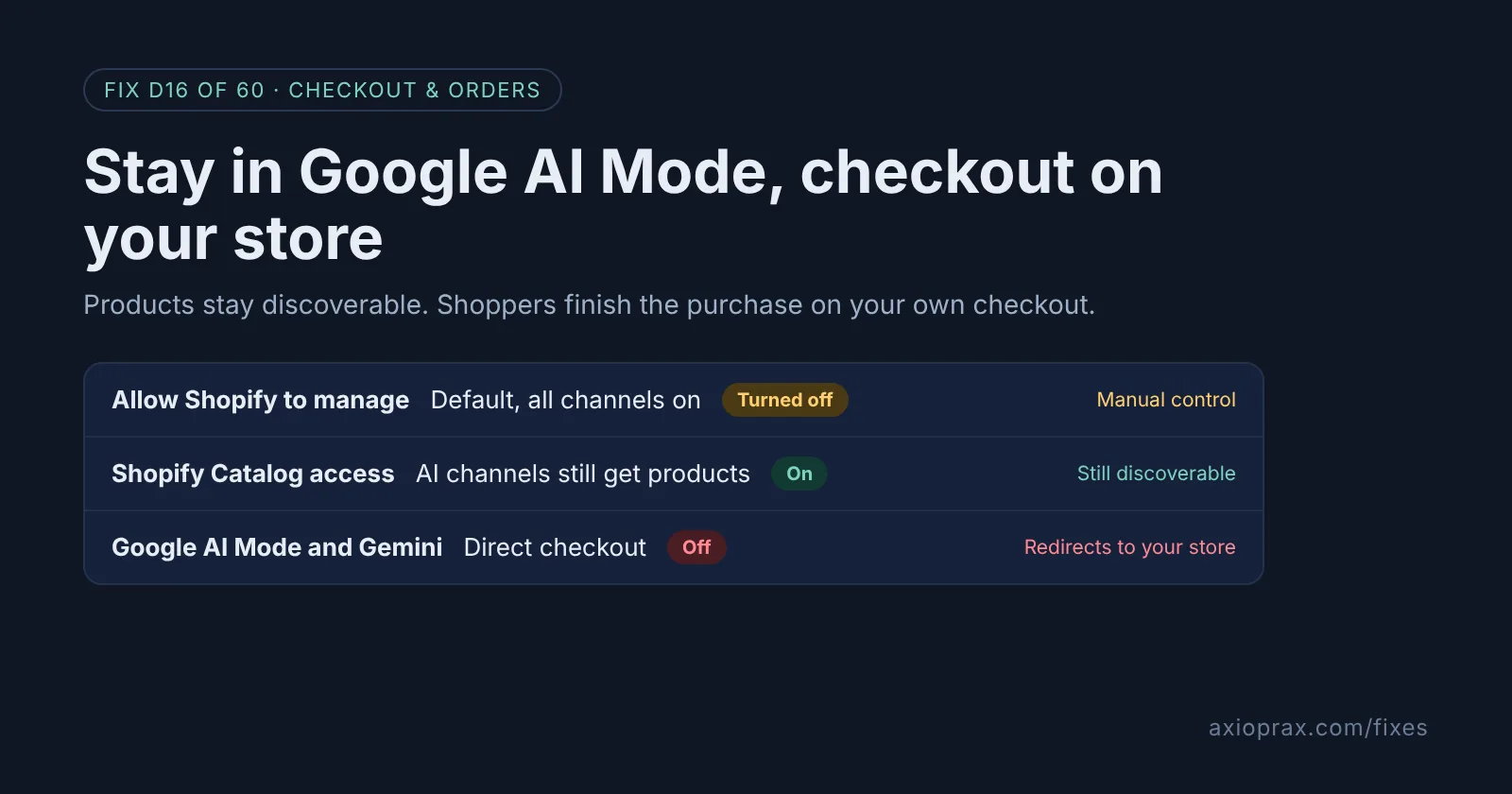
Many owners never chose this. Shopify says agentic storefronts are active by default for eligible stores, and the default setting, Allow Shopify to manage for me, keeps all channels active, turns on direct checkout where a channel offers it, and enrols you in new AI channels as they launch.
How do I know this applies to my store?
- You sell to customers in the US, Canada or Australia. Shopify's Google help page lists this as a requirement, and says your store can be based in any country.
- Your products already reach Google. Shopify says they get to Google AI Mode and Gemini through Google Merchant Center, usually by way of the Google & YouTube sales channel.
- Orders show up attributed to an AI channel you do not remember setting up. Shopify says each order is attributed to the AI channel that drove the sale.
The quickest check is the admin itself. Shopify says direct checkout for Google is still rolling out and might not be in your store yet, and the Agentic section tells you whether you are eligible.
How do I fix it? (step by step)
Work through it with your Shopify admin open, and tick each step as you go.
0 of 6 done
Open the Agentic section.
In your Shopify admin, go to Sales channels > Agentic. It shows which channels offer direct checkout and whether your store is eligible. You need to be the store owner, or a staff member with the App development or App and sales channel permission for Agentic.
Turn off Allow Shopify to manage for me.
This is the default setting, and while it is on, Shopify keeps every channel active and switches direct checkout on wherever a channel supports it. Turn it off so you can change the settings underneath it.
Leave Shopify Catalog access on.
Catalog access is how AI channels get your products. Leave it on if you still want to be found, because turning it off also turns off direct checkout and stops sharing your product data with third-party agentic storefronts.
Turn off Direct checkout for Google AI Mode and Gemini.
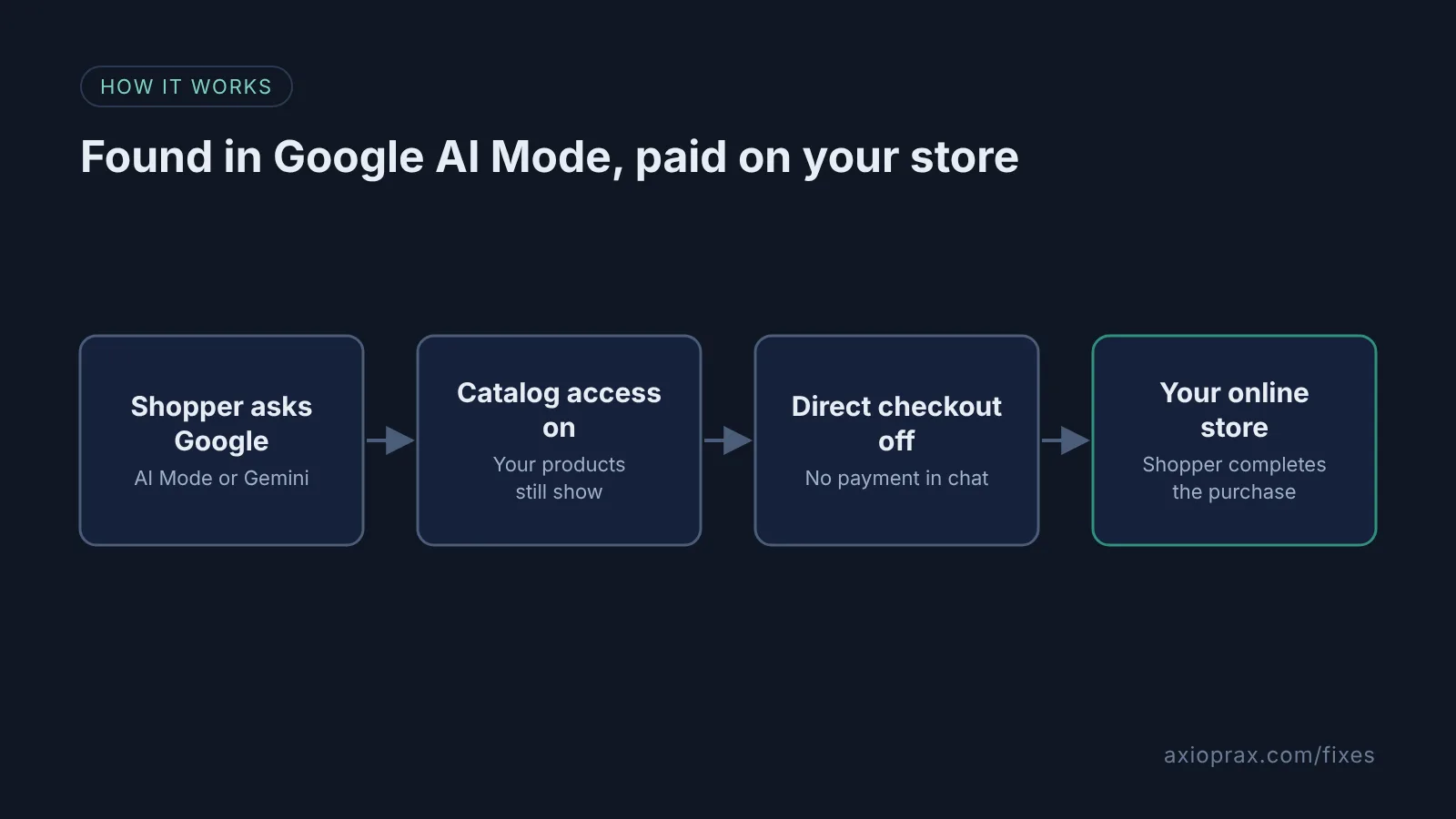
Click Google AI Mode and Gemini, then deactivate Direct checkout. Shoppers can still find your products there, but they get redirected to your online store to finish the purchase.
Decide on Auto enroll new storefronts.
If you want to approve every new AI channel yourself, turn off Auto enroll new storefronts. You can still enrol in a channel by hand later. Then click Save.
Do not switch the managed setting back on.
Shopify says turning Allow Shopify to manage for me back on reactivates all agentic storefront settings, including direct checkout. Write a note for your team so nobody flips it back during a clean-up.
When should I leave it on?
Often, honestly. Direct checkout removes a step: the shopper pays without leaving the conversation. Shopify says you stay the merchant of record, keep the customer relationship, see each order in your admin and pay no transaction fees beyond standard processing rates. If you sell simple products to eligible shoppers, there is a fair case for leaving it alone.
Turn it off when your own checkout does work you rely on. Shopify notes that some checkout blocks, such as those for custom fields, upsells or specific validations, might not display in Google's direct checkout. If you depend on them, sending shoppers to your store keeps them in place.
When is this not the right fix?
If you want your products out of AI channels completely, turning off checkout is not enough. Turning off Shopify Catalog access stops third-party agentic storefronts reaching your products through Catalog, although Shopify says it can take up to 7 days and products can still be found through web crawling. Shop has no Catalog access switch in the Agentic section. Shopify says it is managed in the Shop sales channel settings instead. The honest limit: none of these switches guarantee your products never appear in an AI answer.
What does it cost?
Nothing. These are free settings in your Shopify admin, and changing them adds no fees. Allow time to read what each switch does before you save.