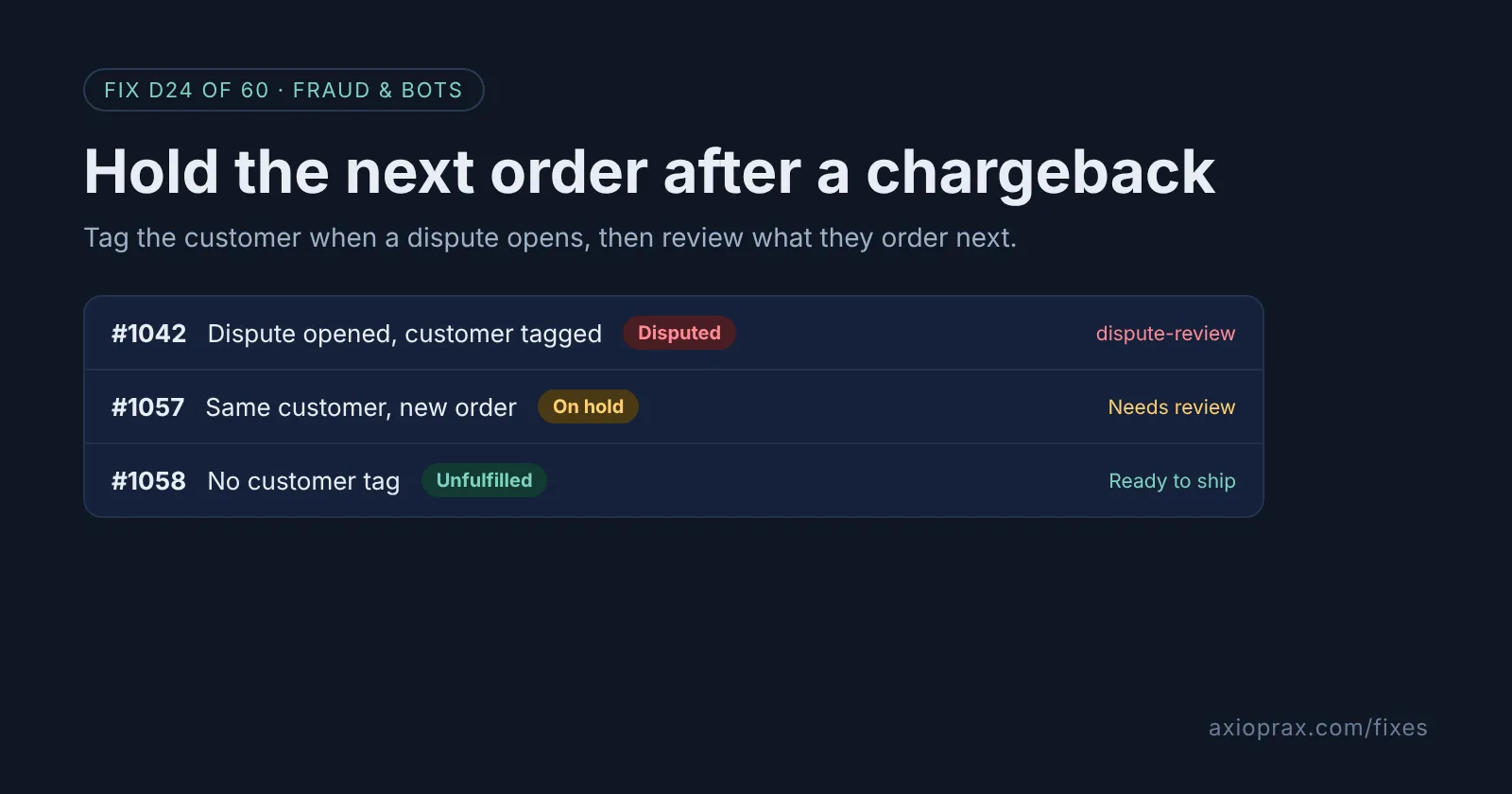
Why does a chargeback not stop the same customer ordering again?
A chargeback is about one order. Whether you win it, lose it or accept it, nothing in that process changes how your store treats the customer next time. Their account still works, their email still goes through checkout, and their next order lands in your Unfulfilled list like any other.
Sometimes that is fine. A dispute can be a genuine mix-up, such as a parcel the cardholder thinks never arrived. But if you ship the next order without a second look, you can end up with two disputes from the same person instead of one.
Shopify Flow has a trigger for exactly this. Shopify says the Dispute created trigger "starts a workflow when a chargeback or inquiry dispute is created for an order in your store that uses Shopify Payments." It works with the Add customer tags action, so the customer is marked the moment a dispute opens. A second workflow then checks for that tag on every new order and holds it.
How do I know I need this?
- You have had a chargeback or inquiry and could not say whether that customer has ordered since.
- You only find a customer's dispute history by scrolling back through their past orders.
- Your packing team ships everything in Unfulfilled without checking who the customer is.
- You take payments through Shopify Payments, which this trigger needs.
If any of these sound familiar, the setup below takes two workflows and one tag.
How do I fix it? (step by step)
Work through it with your Shopify admin open, and tick each step as you go.
0 of 7 done
Create the dispute workflow.
From your Shopify admin, go to Apps > Flow and click Create workflow. Click Select a trigger and choose Dispute created.
Tag the customer.
Click + to add a step, choose Action, then Add customer tags, and enter a neutral tag such as dispute-review. Name the workflow and click Turn on workflow.
Tag customers from earlier disputes.
The trigger only runs for new disputes. Go to Orders, click Search and filter, add the Chargeback and inquiry status filter and select Open, then open each order's customer, add the same tag in the Tags section and click Save.
Install the hold template.
In Apps > Flow, click Create workflow, then Browse templates, and select Hold order and add order tag when a customer has a certain tag. Click Install.
Point it at your tag.
Change the customer tag in the template's condition to dispute-review, and change its order tag to one your team will search for. Fill in Reason and Reason notes in the Hold fulfillment order action, then click Turn on workflow.
Test both workflows.
With Shopify Payments in test mode, create a test dispute using the dispute card numbers from Shopify's payments test mode page. Check that the customer got the tag, then place a second test order as that customer and confirm it goes On hold.
Review held orders every day.
Go to Orders, click Search and filter > Tag and select your order tag. Open each order and, if it looks genuine, click Release hold in the On hold section; if not, cancel it.
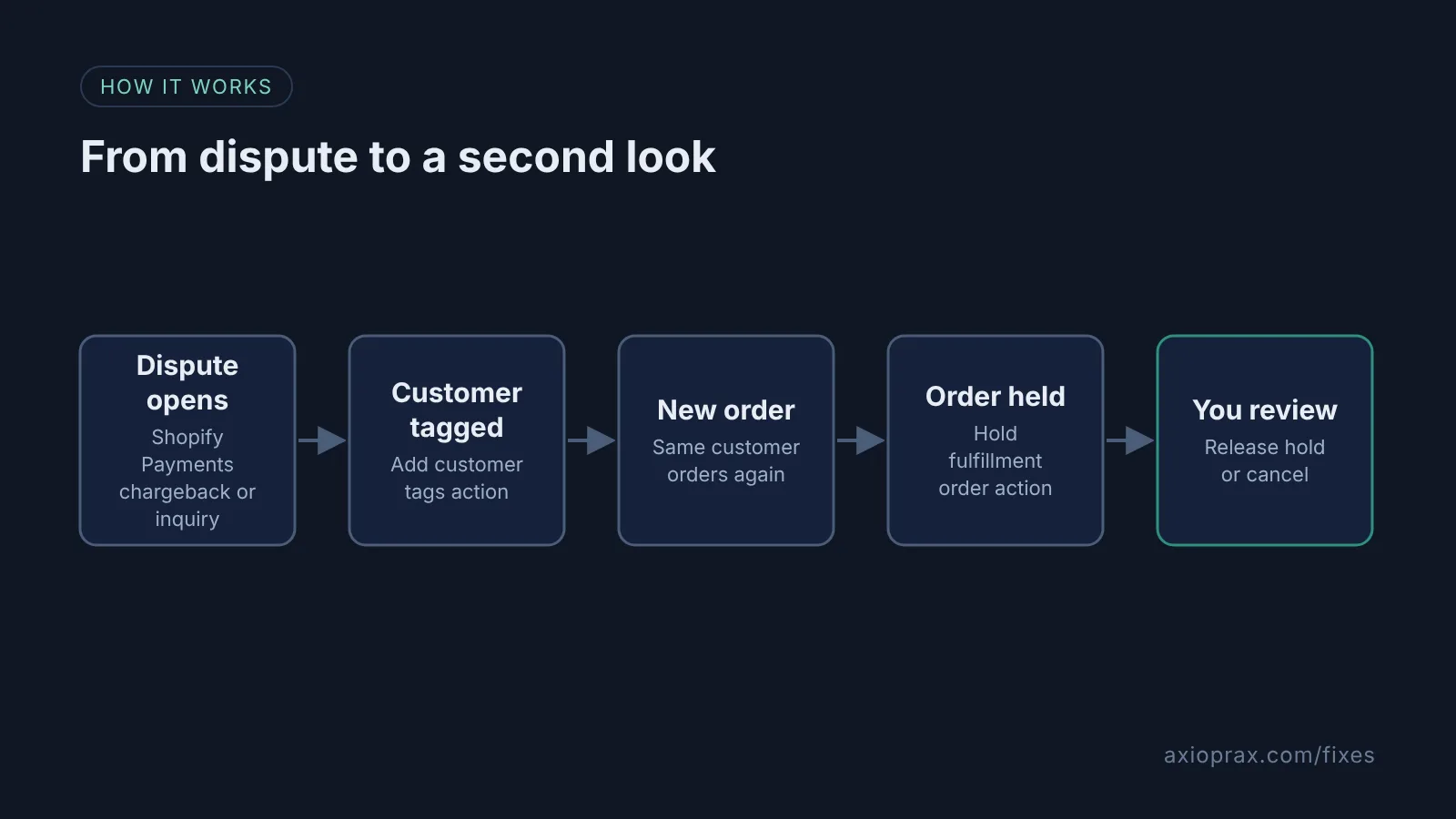
What should we do with a held order?
Look before you decide. Open the earlier disputed order and read the reason. An item not received dispute from a customer who later confirmed delivery is very different from a fraudulent one. If the new order looks genuine, release the hold and it goes back to Unfulfilled. If it does not, cancel it.
Shopify says orders that are on hold "are excluded from the list of Unfulfilled orders", so held orders are easy to forget. Pick one person to check the order tag each day.
When a dispute is settled and you are happy to trust the customer again, remove the tag from their customer page. Flow also has a Remove customer tags action if you would rather do it in a workflow.
When is this not the right fix?
The honest limit: the tag sits on one customer record. If the same person checks out with a different email, the new order belongs to a customer without the tag and will not be held. For that, block the email, address or IP with Fraud Control, as in our repeat fraudster fix. The trigger also only covers orders that use Shopify Payments, so disputes through another payment provider will not tag anyone. A hold stops shipping, not payment. And none of this changes how the dispute itself ends. Respond to that separately, as in our chargeback fix.
What does it cost?
Nothing extra. Shopify Flow is listed as free in the Shopify App Store, and the trigger, actions and template used here are part of it. The real cost is time: someone has to review held orders each day, and a genuine customer may wait a little longer for their parcel.